

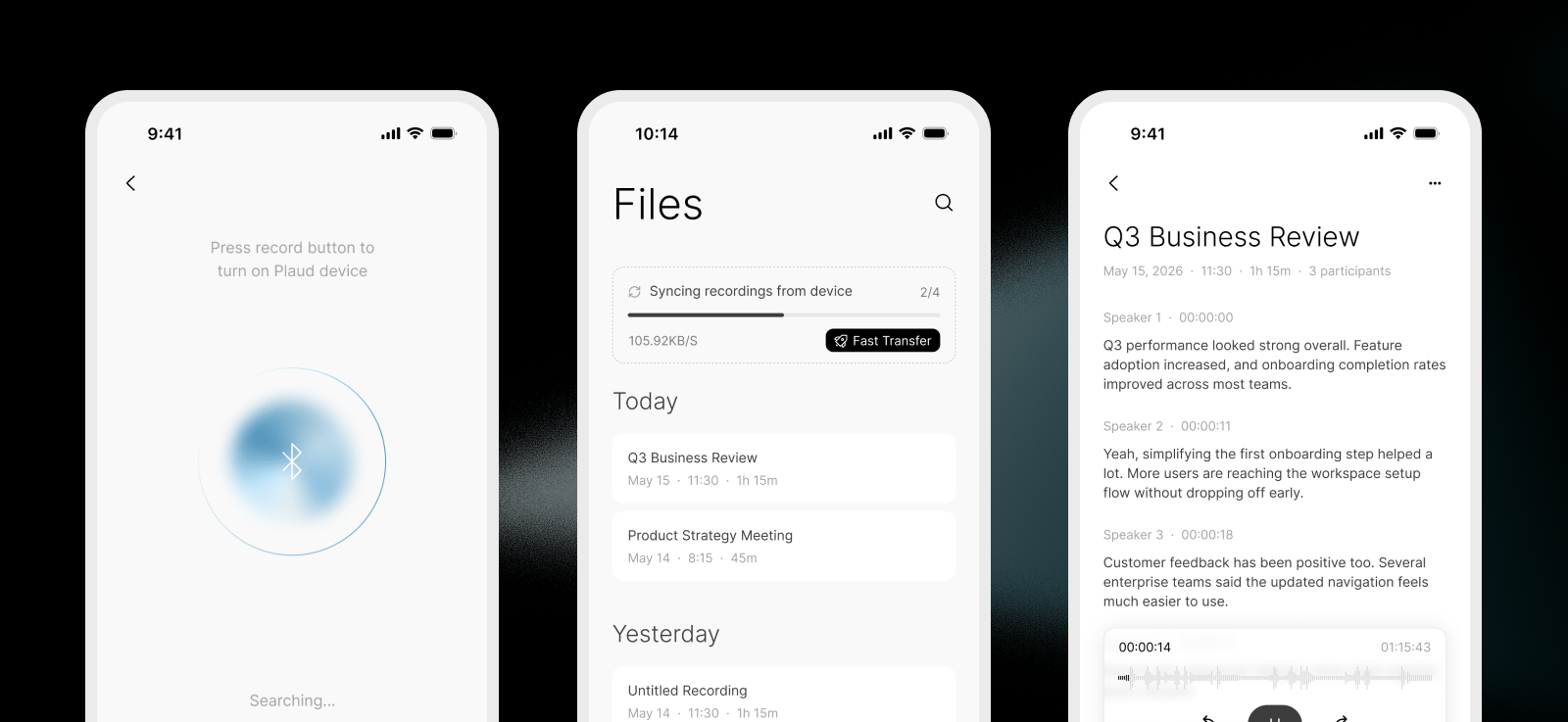
- Connects to Plaud devices
- Syncs recordings from Plaud device to mobile phone
- Uploads recordings from your users’ mobile phone to Plaud’s file storage
- Transcribes recordings with the Transcription API
Video Tutorial
Onboard to the Plaud Developer Platform
Sign in to the Plaud Developer Portal (It’s completely free with a generous device connection limit and transcription usage). Create an Embedded SDK Application to receive your Client ID and Secret Key.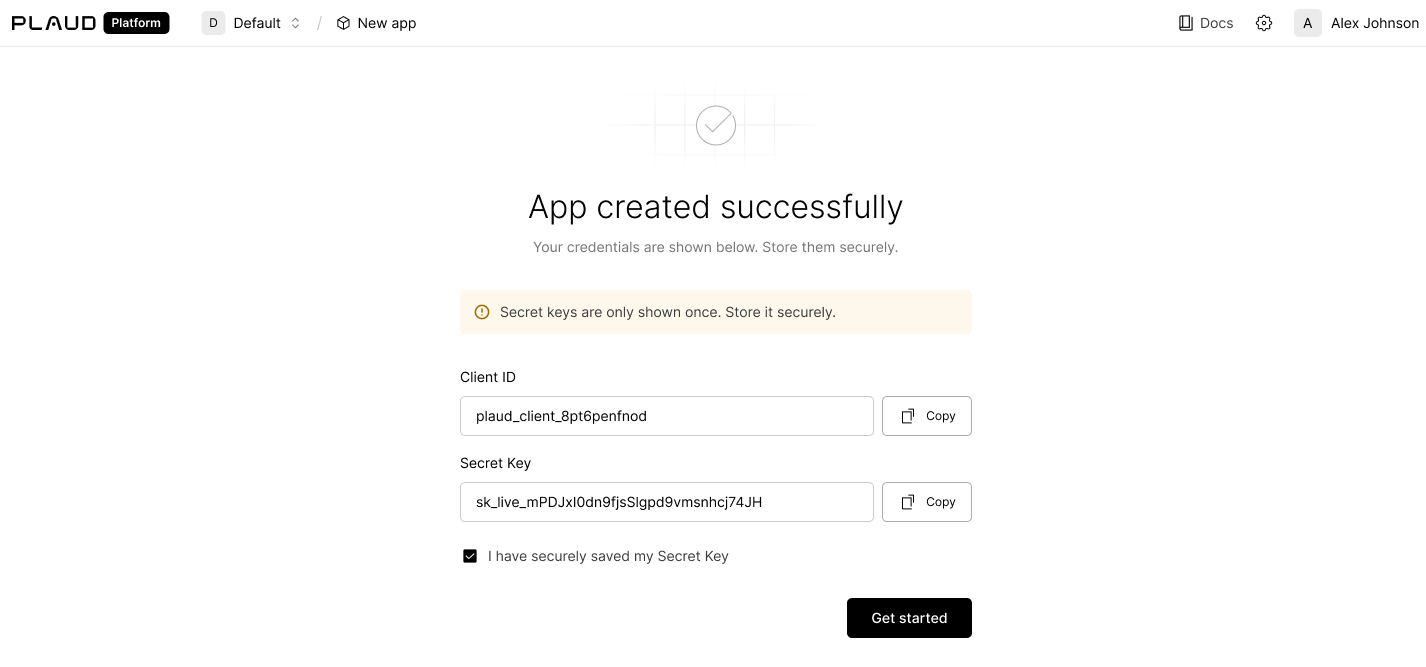
Set Up the Starter App
Prerequisites
- A Mac running macOS with Xcode 16.0+ (the SDK is built with Swift 6.0.3)
- iOS 14.0+ as deployment target
- An Apple ID for code signing onto a physical device. A free Apple ID works for local testing; TestFlight or App Store release (Step 6) requires the paid Apple Developer Program
- A physical iOS device — the SDK frameworks are
arm64-only, so iOS Simulator is not supported - A Plaud device for end-to-end testing
Clone the starter app and generate the Xcode project
Install XcodeGen (brew install xcodegen) to generate an Xcode project from the
project.yml filexcodegen generate step is required — PlaudTemplateApp.xcodeproj does not exist in source control and is built from project.yml.
You can find the GitHub repository for the starter app here.
Retrieve a user token
TheUSER_ACCESS_TOKEN is the per-user JWT your backend mints by calling POST /open/partner/users/access-token on platform-<region>.plaud.ai. See the Authorization API reference for the full exchange flow. The Secret Key stays on your backend — never ship it with the app.
client_id, secret_key, and api_key are issued per region (currently us and jp; eu and sg coming soon). Your backend must call the matching platform-<region>.plaud.ai host when minting the per-user access token — credentials issued for one region will not authenticate against another.Configure credentials
OpenPartnerConfig.xcconfig and set three values:
xcconfig
PartnerConfig.local.xcconfig alongside it with your real values — it’s gitignored and overrides the placeholders.
Then open project.yml and change bundleIdPrefix: com.plaud to your own reverse-DNS prefix (e.g., com.acme); Xcode auto-assigns your Development Team on first build.
(Optional) Apply branding
Four places control the entire visual identity:App Name
There are two changes to make to change your app name:- In
project.yml, addCFBundleDisplayNameto properties
project.yml changes
xcodegen generate after editing
- Verify that
Info.plistincludesCFBundleDisplayName
Info.plist changes
App icon
Add your PNG icon toPlaudTemplateApp/Resources/Assets.xcassets/AppIcon.appiconset/. Then in the .../Assets.xcassets/AppIcon.appiconset/Contents.json file add your icon filename.
Contents.json
Your icon image must be a
.png file without a transparent background or alpha.Theme colors
InPlaudTemplateApp/Common/PlaudTheme.swift, edit the UIColor(hex:) constants. The template ships intentionally monochrome (#1f1f1f labels, #f9f9f9 background)
PlaudTheme.swift changes
Welcome Screen
InPlaudTemplateApp/UI/Onboarding/WelcomeViewController.swift, replace App Name and the UIImage(systemName: "square.grid.2x2") with your app name and icon.
WelcomeViewController.swift changes
You’ll need to create an imageset for your icon asset
Run & test with a real device
arm64-only.
Verify app launches, device pairs, recording syncs, and transcript appears on your iPhone.
Publishing to Testflight and the App Store
1
Sign up for an Apple Developer account
You will need an Apple Developer Account to sign your app and publish to the app store (current pricing is $99/year)
2
Set your developer team and bundle ID
In the 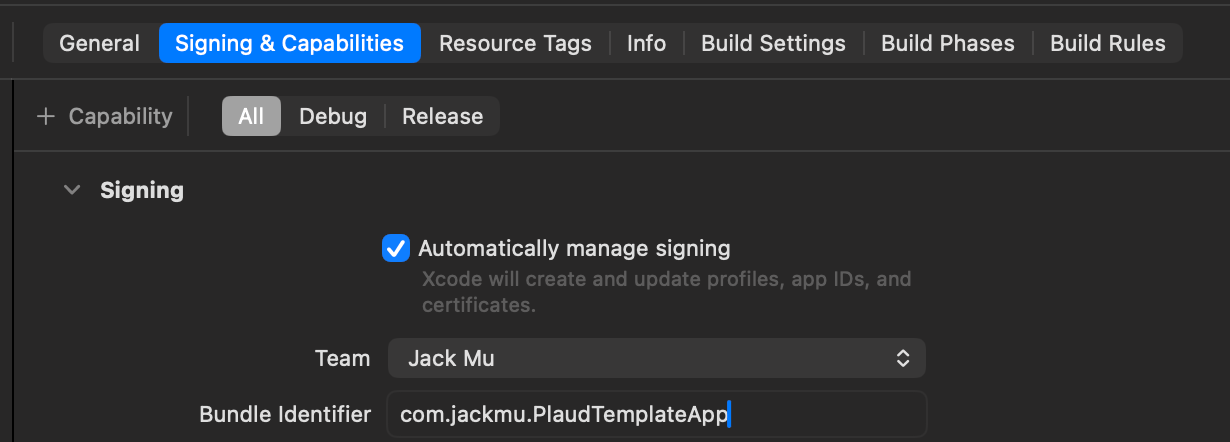
Signing and Capabilities tab, click on Automatically Manage Signing, set your developer team account, and input a unique bundle ID3
Create an iOS app on App Connect
In Apple App Connect, create an iOS app and tag your bundle ID from Step 2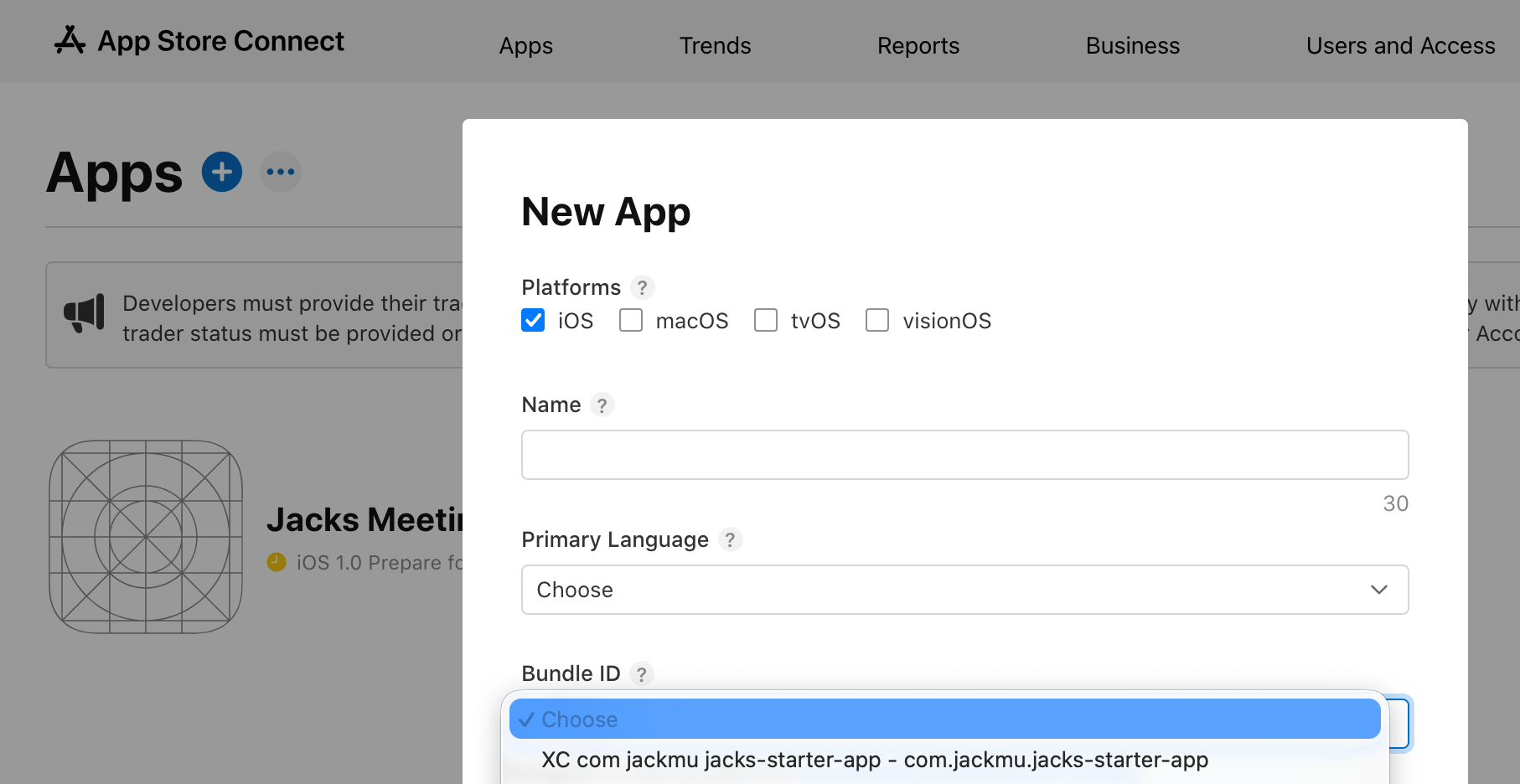
4
Create an archive that stores your build and bundle
In the XCode topbar, navigate to 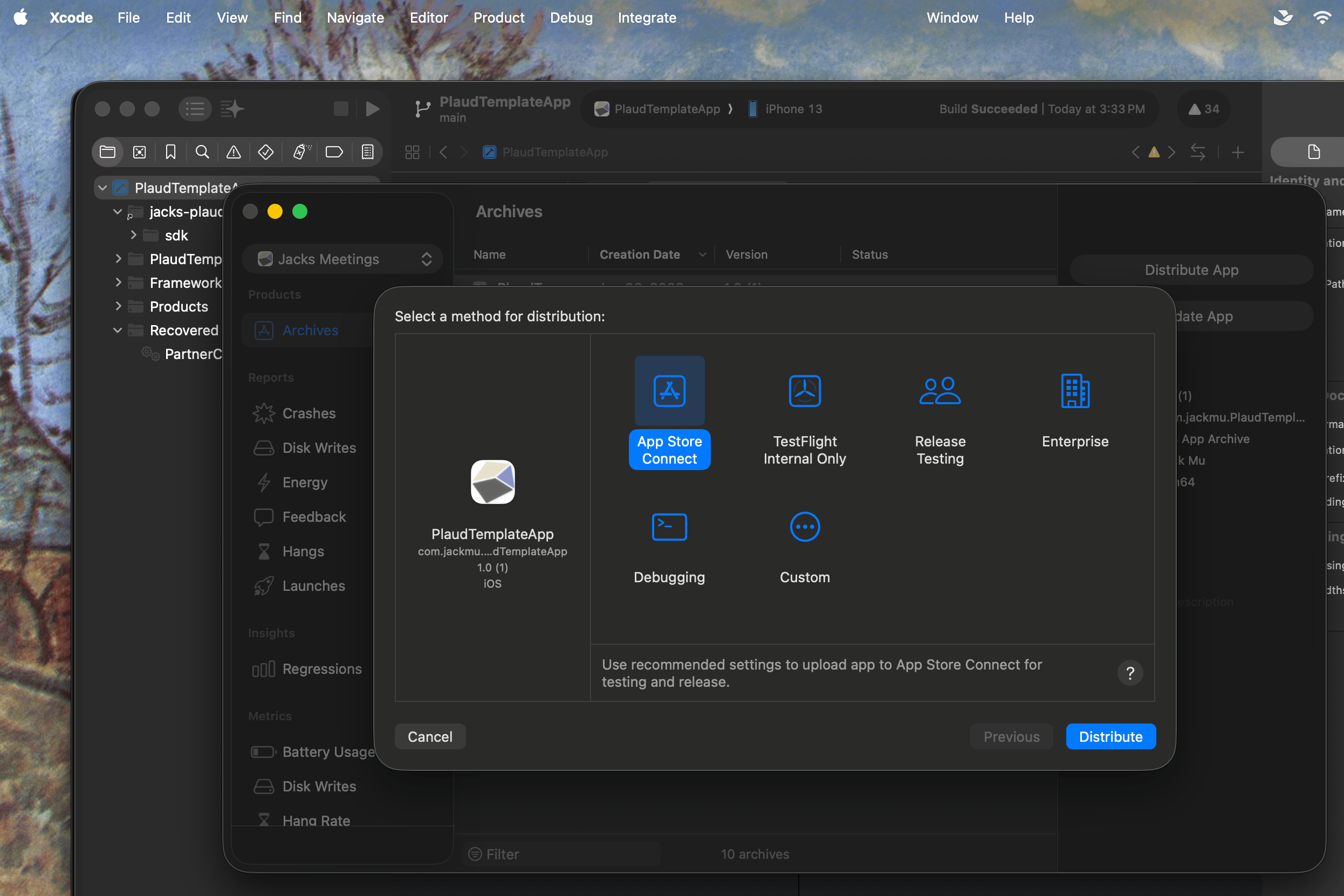
Product > Archive. After clicking Distribute you should see options to publish to App Connect and Testflight5
Fill out information for App Connect or Testflight
Navigating back to your Apple App Connect Portal, you can now either:
- Fill out the necessary information for App Connect
- Choose your users for Testflight invites
6
Publish!
For App Connect, the Apple approval process will take some time.If you’re using Testflight, your beta users should download the Testflight app in the App Store, accept their invite, and they can start using your app!