

Supported clients
Prerequisites
- Node.js ≥ 20 — download
- A Plaud account
Install
Run this once. The installer detects your AI clients, writes the MCP configuration, and opens your browser for sign-in:
Other MCP clients
If your client isn’t auto-detected, add Plaud manually by pasting this into your client’s MCP configuration:
HTTP-based clients (Claude Web, ChatGPT Web)When connecting via HTTP, your recording data passes through Plaud’s MCP server (hosted in the US). Plaud does not store this data after the request completes — it is processed in transit only. Data handling is governed by Plaud’s privacy policy.
Claude Web
1
Open Connectors
Go to claude.ai, navigate to the left sidebar and click on Customize -> Connectors.
2
Add the Plaud MCP server
Click Connectors, search for Plaud Web MCP, and connect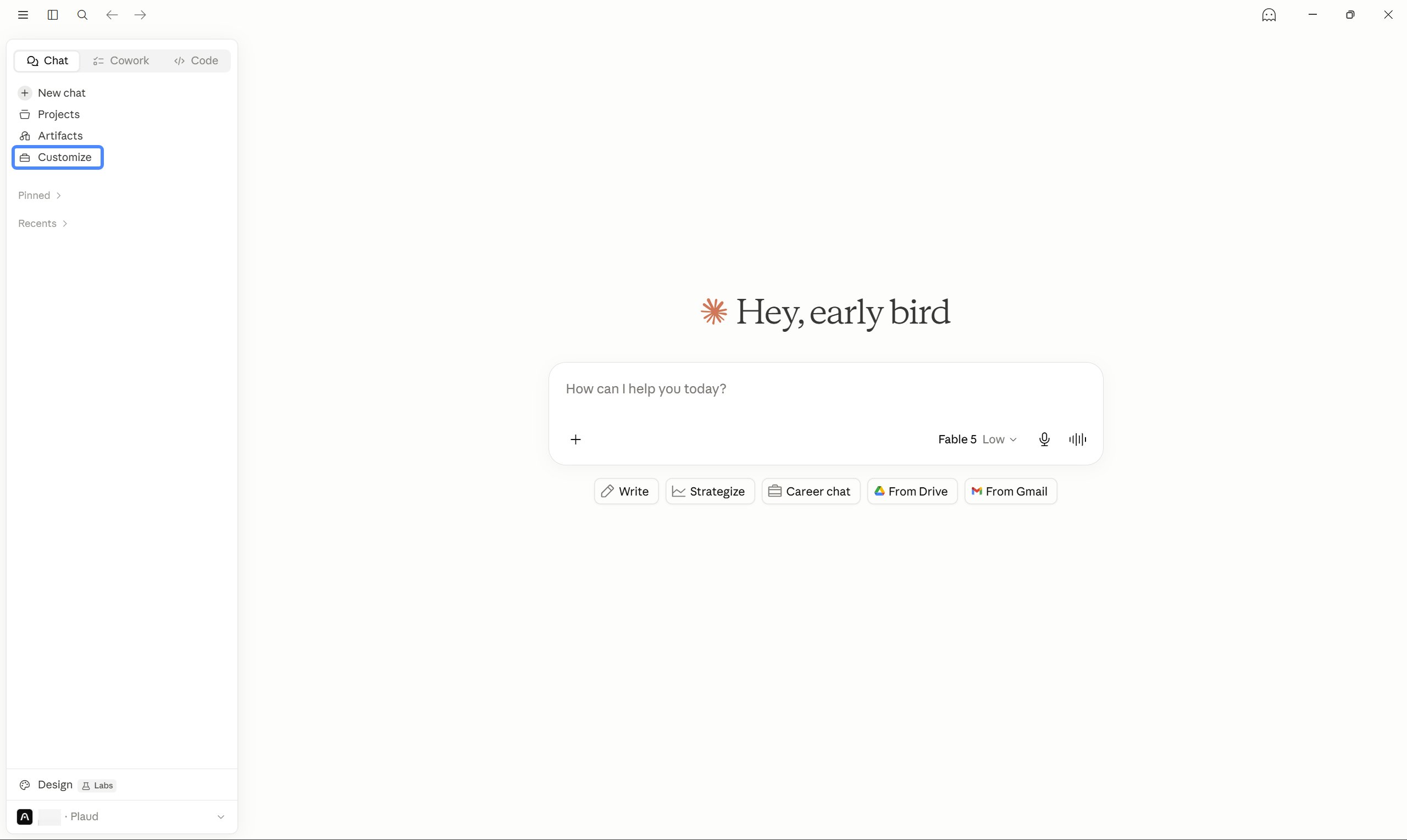
3
Authorize
Claude will open the Plaud authorization page in your browser. Sign in to your Plaud account and click Authorize. Return to Claude — Plaud tools are now available in your conversation.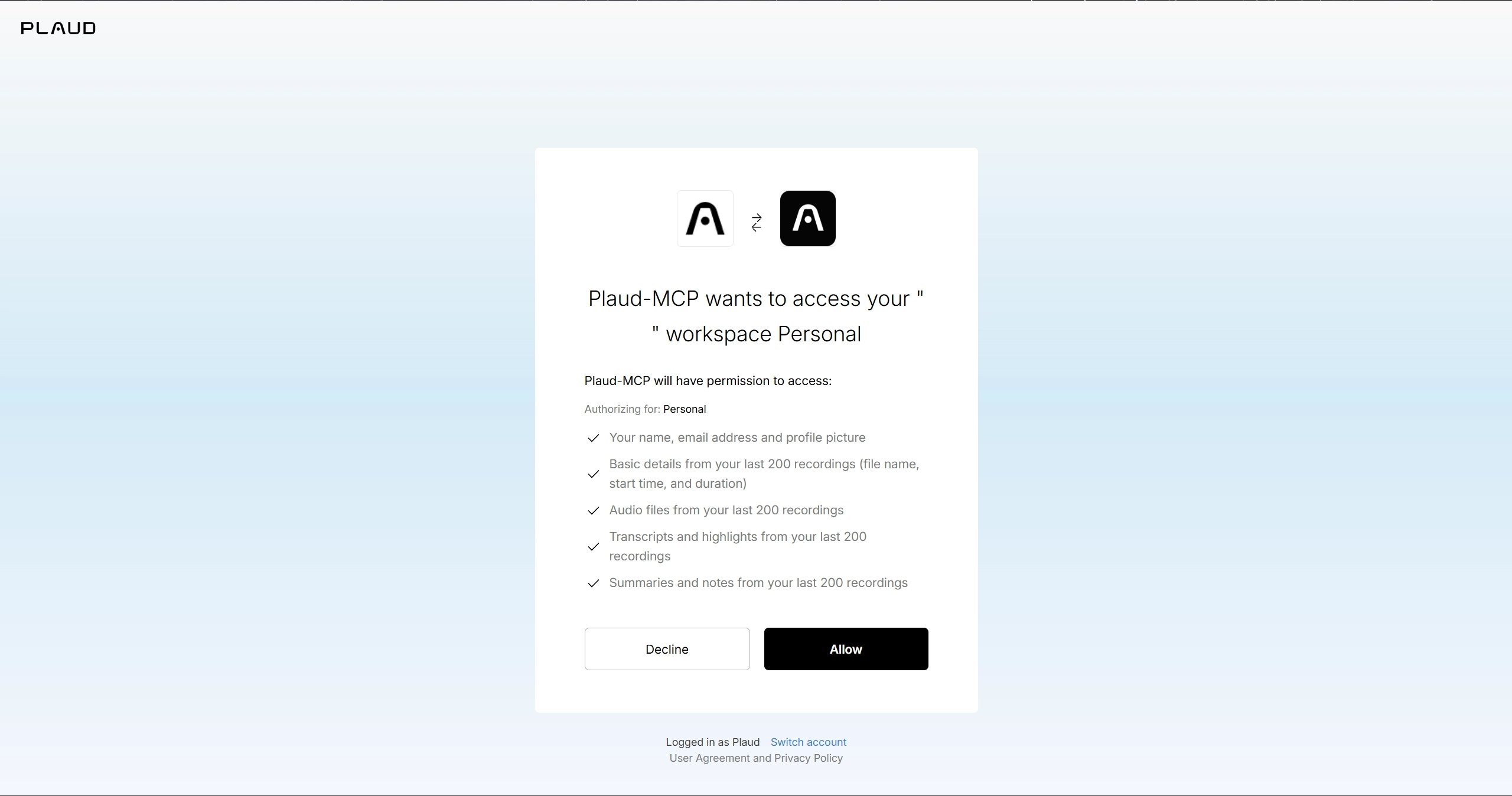
ChatGPT Web
1
Open ChatGPT Web
2
Find the Plaud plugin
On the left sidebar, click on Plugins and search for Plaud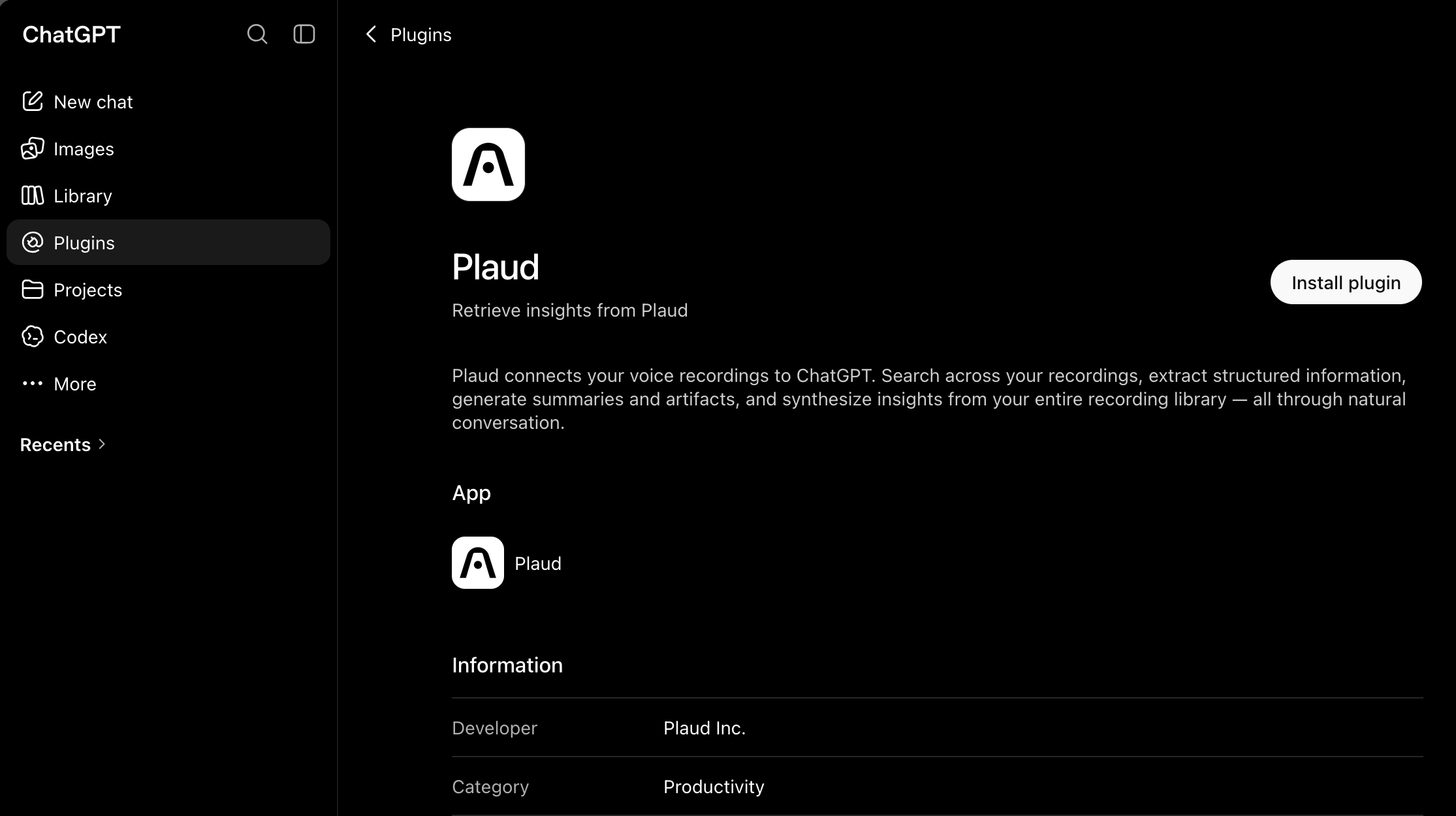
3
Connect
Click Connect and sign in with Plaud
Other Clients
Kiro Setup
Kiro Setup
1
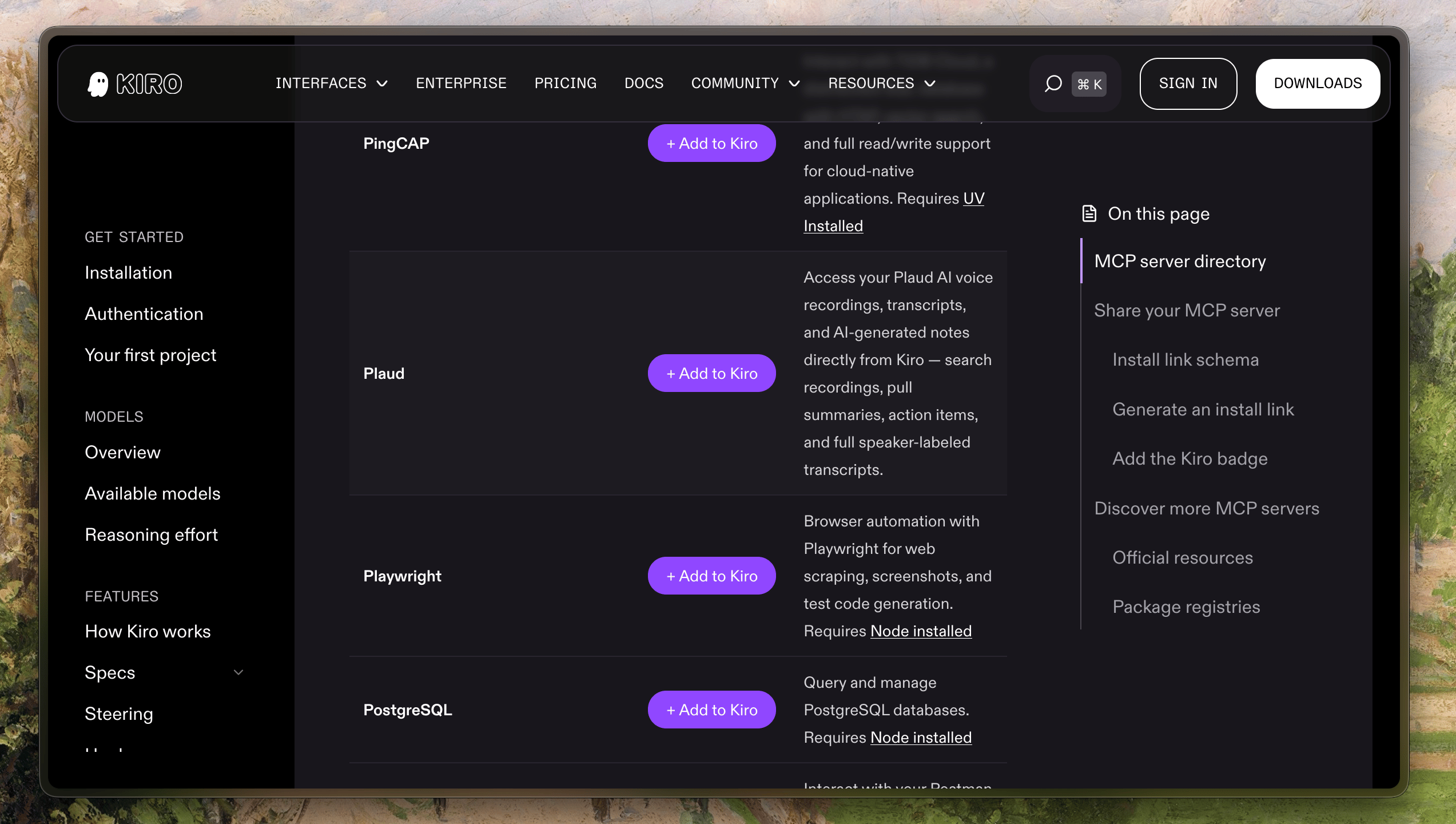
Visit the Kiro Server Directory
2
Add the Plaud MCP Server
Quick start
Once installed, sign in from your AI client:Log me into PlaudYour browser will open the Plaud authorization page. Click Authorize and return to your client — you’re signed in. Then try:
List my recent recordings
Summarize Tuesday’s standup
Draft a follow-up email from this meeting’s action items
Tools
These tools are available to your AI client once Plaud MCP is connected:Filtering recordings with list_files
Data reference
Fields returned by list_files and get_file
Additional fields returned only by get_file
Skills
Skills are pre-built instructions that help your AI client handle common Plaud workflows automatically. They load when the installer runs — no extra steps needed.Upgrade
Uninstall
Then remove the package and local data: