

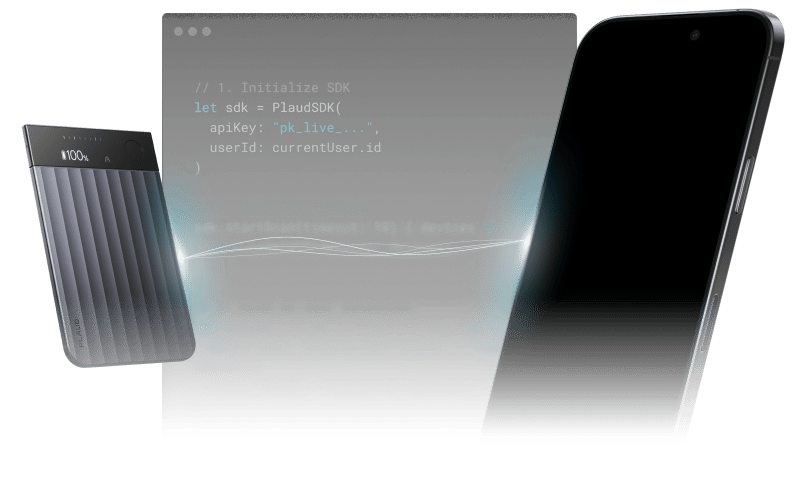
Syncing while phone is locked/in-background
Even when your users’ phone may be in the background- User locks their phone
- User goes to the home screen
- User switches to another app
For iOS
Prerequisites
Make sure that theUIBackgroundModes = [bluetooth-central] is enabled in your permission declarations.
project.yml
Info.plist
Callback-driven Syncs
Use Embedded SDK callbacks and methods to drive file exports while your app is in the background.
Use a combination of these callbacks and methods, along with recursion, to sync large files and multiple files in the background.
Swift
For Android
Callback-driven Syncs
Use Embedded SDK callbacks and methods to drive file exports while your app is in the background.Kotlin
App Wakeup when Plaud is in-range
Requirements
Add location services to your list of permissions inInfo.plist.
Setting up iBeacon
Activate monitoring on the phone and register the user’s paired devices by serial number. Do this inapplication(_:didFinishLaunchingWithOptions:):
Swift
Swift
Using iBeacon
Now that you’ve setup iBeacon on your users’ phone and their Plaud device, when their Plaud device comes back in range, your app receivesbleIBeaconWakeupTriggered(sn:).
The SDK does not reconnect on its own, so we also call connectBySN:
The connection result comes back through the usual bleConnectState / bleBind callbacks. If your app is in the background, nothing in your UI is running to start the file sync after the reconnect, so set a flag when the wake-up fires and start the sync from bleBind once the handshake completes:
Swift
For the full docs on iBeacon, go to our iOS SDK Reference.