> ## Documentation Index
> Fetch the complete documentation index at: https://docs.plaud.ai/llms.txt
> Use this file to discover all available pages before exploring further.
# How Plaud Embedded Works
> We'll walk through a complete Plaud Embedded implementation to understand how the SDKs and APIs fit together.
Multiple SDKs and APIs can be a lot to juggle. **Don't worry!** We'll walk through the steps you need to know to implement Plaud Embedded end-to-end.
## The End-to-End Flow
In general, integrating with Plaud Embedded end-to-end is done through the following steps:
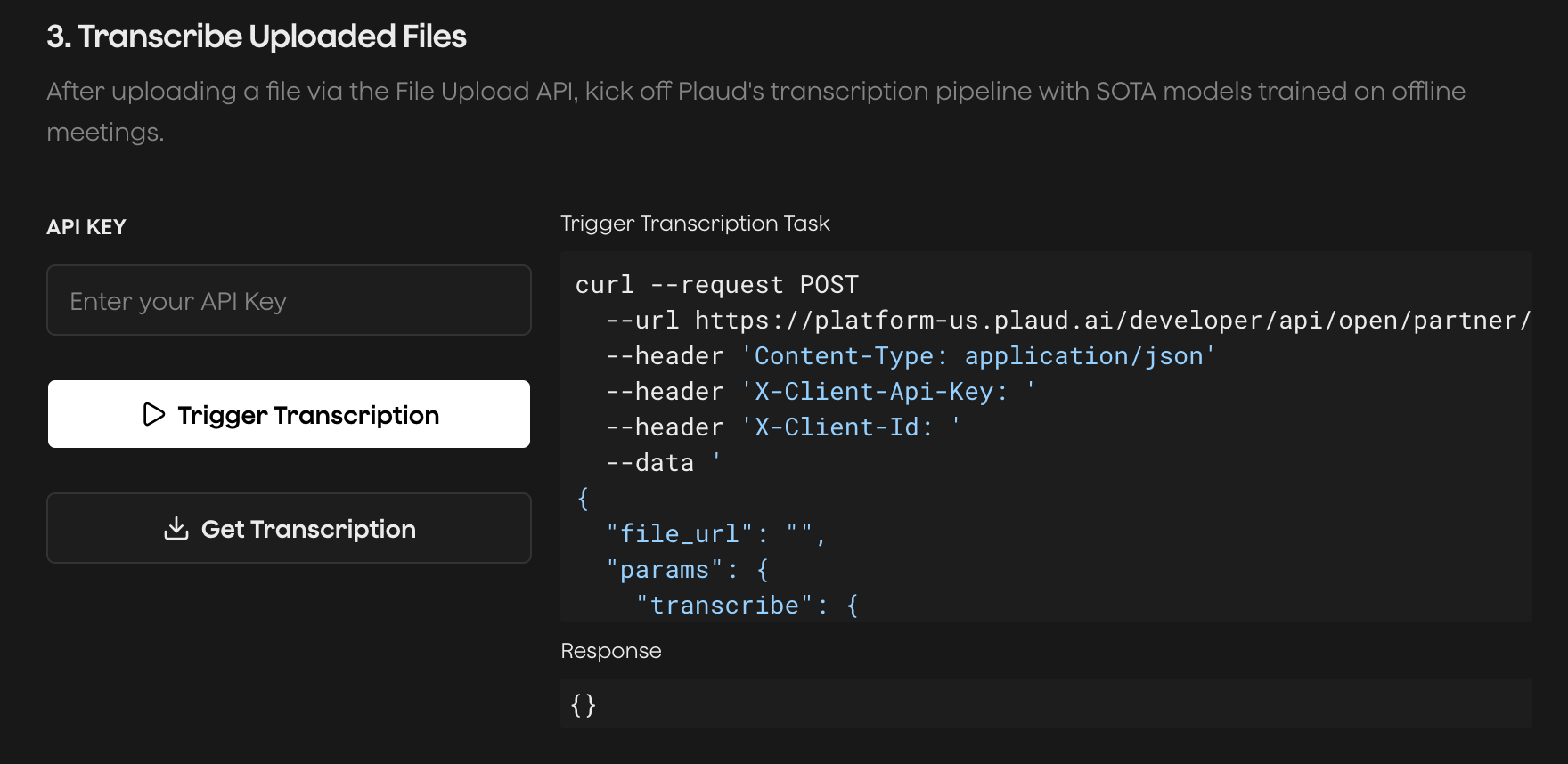
Try the [Plaud Embedded API Playground](https://plaud-embedded-playground.vercel.app/) to see every step of the transcription process with your own client credentials.
End-to-end, from **authentication** to **recording audio** to **uploading** to **transcription**.
 Let's go through each step.
### Retrieving Tokens and Authenticating
Plaud Embedded's SDK and APIs have two different authentication methods to be aware of:
1. User Token - user-level tokens with your **user's unique ID** and minted with a **Partner Token**
2. Client ID & API Key - used for the Transcription API
A Partner Token is an **application-level** token. A single Partner Token can mint multiple **User Tokens**.
Use the [Authentication APIs](/plaud-embedded/auth-api-overview) to retrieve your Partner Tokens and mint User Tokens.
```http Exchanging client credentials for Partner Token expandable theme={"system"}
POST https://platform-us.plaud.ai/developer/api/oauth/partner/access-token
Authorization: Basic base64(client_id:secret_key)
Content-Type: application/x-www-form-urlencoded
//Returns
{
"access_token": "eyJhbGciOiJSUz...",
"refresh_token": "eyJhbGci...",
"token_type": "bearer",
"expires_in": 3600
}
```
```http Minting User Token expandable theme={"system"}
POST https://platform-us.plaud.ai/developer/api/open/partner/users/access-token
Authorization: Bearer
Content-Type: application/json
{
"user_id": "",
"expires_in": 86400
}
//Returns
{
"access_token": "eyJhbGci...",
"token_type": "bearer",
"expires_in": 86400
}
```
### Binding Plaud Devices to Your Mobile App
**Binding Plaud Devices** is the process of linking your users' Plaud device to your mobile application. The reason we use the term **"bind"** is because devices can only be linked to one application at a time.
When your application **binds to your users' Plaud devices**, your partner/user credentials are used for encrypting, decrypting, and syncing your users' data with your app. This is how your users' data is kept secure and only syncs data with your application (not just any Plaud Embedded application).
```swift Binding to Plaud devices using the Embedded SDK expandable theme={"system"}
// Configure Embedded SDK
private let customDomain = "platform-us.plaud.ai"
func configure(userId: String) {
RecordingStore.shared.userId = userId
PlaudDeviceAgent.shared.initSDK(
userAccessToken: userAccessToken,
customDomain: customDomain
)
}
// Scan for Plaud devices
func startScan() {
cachedBleDevices.removeAll()
scannedDevicesSubject.send([])
connectionStateSubject.send(.scanning)
PlaudDeviceAgent.shared.startScan()
}
// Connect to Plaud devices via Bluetooth
func connect(_ device: ScannedDevice, userId: String) {
guard let bleDevice = cachedBleDevices[device.serialNumber] else { return }
connectionStateSubject.send(.connecting(device))
PlaudDeviceAgent.shared.connectBleDevice(bleDevice: bleDevice, deviceToken: userId)
}
```
### Syncing Files from Plaud Device to Your Mobile App
Plaud devices have their own storage and audio is stored on-device while recording. After a recording is finished, you must sync audio files from your users' Plaud device to their mobile app.
This can be done via Bluetooth Low Energy (BLE) or WiFi Fast Transfer.
WiFi Fast Transfer is **\~10x** faster. It works by opening a hotspot connection between your Plaud device and your users' phone. WiFi Fast Transfer requires the **HotSpot Entitlement** when configuring your iOS app
```swift Syncing files with BLE and WiFi Fast Transfer expandable theme={"system"}
// BLE Sync
PlaudDeviceAgent.shared.exportAudio(
sessionId: file.sessionId,
outputDir: outputDir,
format: .wav,
channels: 1,
callback: callback
)
// WiFi Fast Transfer
PlaudDeviceAgent.shared.setDeviceWiFi(open: true)
// In bleWiFiOpen callback:
PlaudWiFiAgent.shared.bleDevice = BleAgent.shared.bleDevice
PlaudWiFiAgent.shared.connectWifi(ssid, password, 60)
// After wifiHandshake(status: 0):
PlaudWiFiAgent.shared.exportAudioViaWiFi(...)
```
### (Optional) Uploading Files Using the File Upload API
The [Transcription API](/plaud-embedded/transcription-api-overview) accepts any publicly accessible audio URL. You can host your files on your own storage, or use Plaud's File Upload API. If you choose to use Plaud's managed S3 storage, the upload is done in 3 steps:
1. Generating presigned upload URLs to Plaud's S3 storage
2. Uploading your audio files to the presigned upload URLs in chunks
3. Sending the chunk information to complete the multipart upload
```http Generating presigned upload URLs expandable theme={"system"}
POST https://platform-us.plaud.ai/developer/api/open/partner/files/upload/generate-presigned-urls
Content-Type: application/json
Authorization: Bearer
{
"filesize": 10485760,
"filetype": "mp3"
}
// Returns
{
"FileId": "file_xxx",
"UploadId": "upload_xxx",
"ChunkSize": 5242880,
"Parts": [
{ "PartNumber": 1, "PresignedUrl": "https://plaud-bucket.s3.amazonaws.com/..." },
{ "PartNumber": 2, "PresignedUrl": "https://plaud-bucket.s3.amazonaws.com/..." }
]
}
```
```http Uploading chunks to presigned storage URLs theme={"system"}
PUT [PresignedUrl]
[raw bytes of chunk]
// Returns
ETag: "abc123..."
```
```http Completing upload with the part mappings expandable theme={"system"}
POST https://platform-us.plaud.ai/developer/api/open/partner/files/upload/complete-upload
Content-Type: application/json
Authorization: Bearer
{
"file_id": "file_xxx",
"upload_id": "upload_xxx",
"part_list": [
{ "PartNumber": 1, "ETag": "\"abc123...\"" },
{ "PartNumber": 2, "ETag": "\"def456...\"" }
],
"filetype": "mp3",
"file_md5": "9e107d9d372bb6826bd81d3542a419d6"
}
// Returns
{
"FileId": "file_xxx",
"FileType": "mp3",
"DownloadUrl": "https://plaud-bucket.s3.amazonaws.com/...",
"FileMd5": "9e107d9d372bb6826bd81d3542a419d6"
}
```
### Triggering and Pulling Transcriptions from the Transcriptions API
The Transcription API allows you to transcribe any file uploaded to Plaud's storage in an asynchronous way.
* **Trigger a transcription task** - behind the scenes, Plaud is running your uploaded audio file through noise reduction, speaker detection, language recognition, and other speech-to-text pipeline steps
* **Poll transcription status** - use the Transcription API to check the status of a task, and on the `SUCCESS` status, the transcription data will be available.
```http Submit a transcription task expandable theme={"system"}
POST https://platform-us.plaud.ai/developer/api/open/partner/ai/transcriptions/
Content-Type: application/json
X-Client-Api-Key: [API_KEY]
X-Client-Id: [CLIENT_ID]
{
"file_url": "",
"params": {
"transcribe": { "language": "auto", "model": "plaud-fast-whisper" },
"vad": { "decode_silence": false },
"diarization": { "enabled": false, "return_embedding": false }
}
}
// Returns
{
"transcription_id": "task_exec_xxx",
"status": "PENDING",
"data": {}
}
```
```http Check and retrieve transcription expandable theme={"system"}
GET https://platform-us.plaud.ai/developer/api/open/partner/ai/transcriptions/[TRANSCRIPTION_ID]
X-Client-Api-Key: [API_KEY]
X-Client-Id: [CLIENT_ID]
// Returns
{
"transcription_id": "task_exec_xxx",
"status": "SUCCESS",
"data": {
"text": "Meeting started at 10am...",
"language": "en",
"duration": 1843,
"segments": [
{
"start": 0,
"end": 4.2,
"text": "Meeting started at 10am.",
"speaker": "Speaker 1"
}
]
}
}
```
That's the general flow for Plaud Embedded apps! You're now ready to get started implementing the Embedded SDK.
For new builders to build on top of our iOS template with the Embedded SDK pre-implemented (Also a great reference)
For developers ready to jump in and implement the Embedded SDK in their existing mobile app
Let's go through each step.
### Retrieving Tokens and Authenticating
Plaud Embedded's SDK and APIs have two different authentication methods to be aware of:
1. User Token - user-level tokens with your **user's unique ID** and minted with a **Partner Token**
2. Client ID & API Key - used for the Transcription API
A Partner Token is an **application-level** token. A single Partner Token can mint multiple **User Tokens**.
Use the [Authentication APIs](/plaud-embedded/auth-api-overview) to retrieve your Partner Tokens and mint User Tokens.
```http Exchanging client credentials for Partner Token expandable theme={"system"}
POST https://platform-us.plaud.ai/developer/api/oauth/partner/access-token
Authorization: Basic base64(client_id:secret_key)
Content-Type: application/x-www-form-urlencoded
//Returns
{
"access_token": "eyJhbGciOiJSUz...",
"refresh_token": "eyJhbGci...",
"token_type": "bearer",
"expires_in": 3600
}
```
```http Minting User Token expandable theme={"system"}
POST https://platform-us.plaud.ai/developer/api/open/partner/users/access-token
Authorization: Bearer
Content-Type: application/json
{
"user_id": "",
"expires_in": 86400
}
//Returns
{
"access_token": "eyJhbGci...",
"token_type": "bearer",
"expires_in": 86400
}
```
### Binding Plaud Devices to Your Mobile App
**Binding Plaud Devices** is the process of linking your users' Plaud device to your mobile application. The reason we use the term **"bind"** is because devices can only be linked to one application at a time.
When your application **binds to your users' Plaud devices**, your partner/user credentials are used for encrypting, decrypting, and syncing your users' data with your app. This is how your users' data is kept secure and only syncs data with your application (not just any Plaud Embedded application).
```swift Binding to Plaud devices using the Embedded SDK expandable theme={"system"}
// Configure Embedded SDK
private let customDomain = "platform-us.plaud.ai"
func configure(userId: String) {
RecordingStore.shared.userId = userId
PlaudDeviceAgent.shared.initSDK(
userAccessToken: userAccessToken,
customDomain: customDomain
)
}
// Scan for Plaud devices
func startScan() {
cachedBleDevices.removeAll()
scannedDevicesSubject.send([])
connectionStateSubject.send(.scanning)
PlaudDeviceAgent.shared.startScan()
}
// Connect to Plaud devices via Bluetooth
func connect(_ device: ScannedDevice, userId: String) {
guard let bleDevice = cachedBleDevices[device.serialNumber] else { return }
connectionStateSubject.send(.connecting(device))
PlaudDeviceAgent.shared.connectBleDevice(bleDevice: bleDevice, deviceToken: userId)
}
```
### Syncing Files from Plaud Device to Your Mobile App
Plaud devices have their own storage and audio is stored on-device while recording. After a recording is finished, you must sync audio files from your users' Plaud device to their mobile app.
This can be done via Bluetooth Low Energy (BLE) or WiFi Fast Transfer.
WiFi Fast Transfer is **\~10x** faster. It works by opening a hotspot connection between your Plaud device and your users' phone. WiFi Fast Transfer requires the **HotSpot Entitlement** when configuring your iOS app
```swift Syncing files with BLE and WiFi Fast Transfer expandable theme={"system"}
// BLE Sync
PlaudDeviceAgent.shared.exportAudio(
sessionId: file.sessionId,
outputDir: outputDir,
format: .wav,
channels: 1,
callback: callback
)
// WiFi Fast Transfer
PlaudDeviceAgent.shared.setDeviceWiFi(open: true)
// In bleWiFiOpen callback:
PlaudWiFiAgent.shared.bleDevice = BleAgent.shared.bleDevice
PlaudWiFiAgent.shared.connectWifi(ssid, password, 60)
// After wifiHandshake(status: 0):
PlaudWiFiAgent.shared.exportAudioViaWiFi(...)
```
### (Optional) Uploading Files Using the File Upload API
The [Transcription API](/plaud-embedded/transcription-api-overview) accepts any publicly accessible audio URL. You can host your files on your own storage, or use Plaud's File Upload API. If you choose to use Plaud's managed S3 storage, the upload is done in 3 steps:
1. Generating presigned upload URLs to Plaud's S3 storage
2. Uploading your audio files to the presigned upload URLs in chunks
3. Sending the chunk information to complete the multipart upload
```http Generating presigned upload URLs expandable theme={"system"}
POST https://platform-us.plaud.ai/developer/api/open/partner/files/upload/generate-presigned-urls
Content-Type: application/json
Authorization: Bearer
{
"filesize": 10485760,
"filetype": "mp3"
}
// Returns
{
"FileId": "file_xxx",
"UploadId": "upload_xxx",
"ChunkSize": 5242880,
"Parts": [
{ "PartNumber": 1, "PresignedUrl": "https://plaud-bucket.s3.amazonaws.com/..." },
{ "PartNumber": 2, "PresignedUrl": "https://plaud-bucket.s3.amazonaws.com/..." }
]
}
```
```http Uploading chunks to presigned storage URLs theme={"system"}
PUT [PresignedUrl]
[raw bytes of chunk]
// Returns
ETag: "abc123..."
```
```http Completing upload with the part mappings expandable theme={"system"}
POST https://platform-us.plaud.ai/developer/api/open/partner/files/upload/complete-upload
Content-Type: application/json
Authorization: Bearer
{
"file_id": "file_xxx",
"upload_id": "upload_xxx",
"part_list": [
{ "PartNumber": 1, "ETag": "\"abc123...\"" },
{ "PartNumber": 2, "ETag": "\"def456...\"" }
],
"filetype": "mp3",
"file_md5": "9e107d9d372bb6826bd81d3542a419d6"
}
// Returns
{
"FileId": "file_xxx",
"FileType": "mp3",
"DownloadUrl": "https://plaud-bucket.s3.amazonaws.com/...",
"FileMd5": "9e107d9d372bb6826bd81d3542a419d6"
}
```
### Triggering and Pulling Transcriptions from the Transcriptions API
The Transcription API allows you to transcribe any file uploaded to Plaud's storage in an asynchronous way.
* **Trigger a transcription task** - behind the scenes, Plaud is running your uploaded audio file through noise reduction, speaker detection, language recognition, and other speech-to-text pipeline steps
* **Poll transcription status** - use the Transcription API to check the status of a task, and on the `SUCCESS` status, the transcription data will be available.
```http Submit a transcription task expandable theme={"system"}
POST https://platform-us.plaud.ai/developer/api/open/partner/ai/transcriptions/
Content-Type: application/json
X-Client-Api-Key: [API_KEY]
X-Client-Id: [CLIENT_ID]
{
"file_url": "",
"params": {
"transcribe": { "language": "auto", "model": "plaud-fast-whisper" },
"vad": { "decode_silence": false },
"diarization": { "enabled": false, "return_embedding": false }
}
}
// Returns
{
"transcription_id": "task_exec_xxx",
"status": "PENDING",
"data": {}
}
```
```http Check and retrieve transcription expandable theme={"system"}
GET https://platform-us.plaud.ai/developer/api/open/partner/ai/transcriptions/[TRANSCRIPTION_ID]
X-Client-Api-Key: [API_KEY]
X-Client-Id: [CLIENT_ID]
// Returns
{
"transcription_id": "task_exec_xxx",
"status": "SUCCESS",
"data": {
"text": "Meeting started at 10am...",
"language": "en",
"duration": 1843,
"segments": [
{
"start": 0,
"end": 4.2,
"text": "Meeting started at 10am.",
"speaker": "Speaker 1"
}
]
}
}
```
That's the general flow for Plaud Embedded apps! You're now ready to get started implementing the Embedded SDK.
For new builders to build on top of our iOS template with the Embedded SDK pre-implemented (Also a great reference)
For developers ready to jump in and implement the Embedded SDK in their existing mobile app